1. Installing the Extension
HopeChest is a free Google Chrome extension — no account or payment is required to install it.
- Open the HopeChest listing on the Chrome Web Store.
- Click Add to Chrome, then confirm by clicking Add extension.
- Once installed, look for the HopeChest chest icon in your toolbar, next to the address bar.
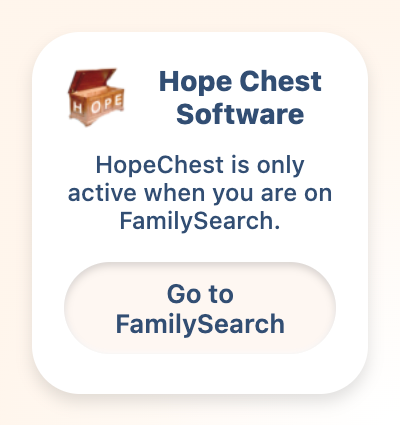
You'll see this small popup any time you click the HopeChest icon while on a page other than FamilySearch — for example, a new tab, Google, or any other website. Click Go to FamilySearch and the popup will take you straight there.
2. Signing In to FamilySearch
HopeChest doesn't use its own username and password — it's linked directly to your FamilySearch account.
- Go to familysearch.org and log in as you normally would.
- Open your family tree.
- Your HopeChest data automatically follows whichever FamilySearch account you're logged into. If you switch FamilySearch accounts, you'll see a different HopeChest — your names and labels won't carry over between accounts.
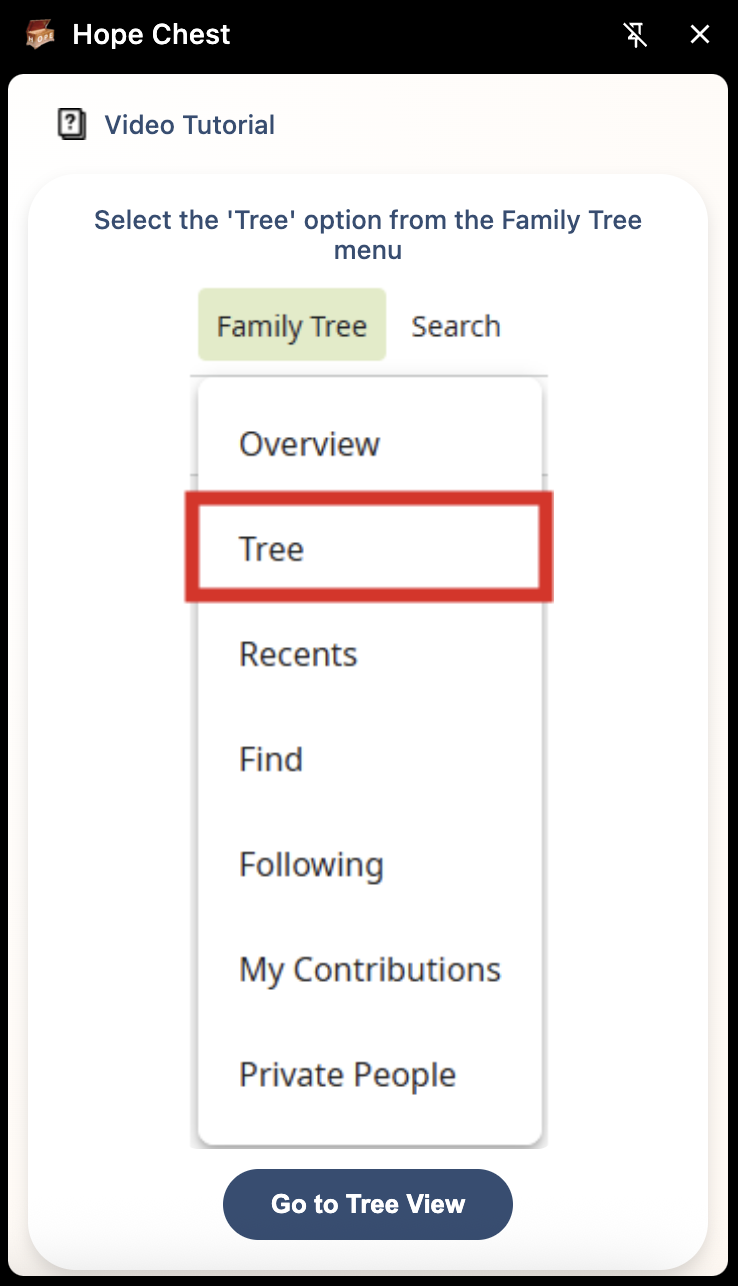
This walkthrough appears when HopeChest opens on a FamilySearch page it can't search from directly — for example, your account overview, a person's detail page, or Recents, instead of the Tree page. Follow the highlighted step (here, clicking Tree under the Family Tree menu) and then Go to Tree View to land somewhere HopeChest can start a search.
3. Running Your First Search
Once you're logged into FamilySearch, click the HopeChest icon to open the menu. This is the main menu you'll come back to for every search:
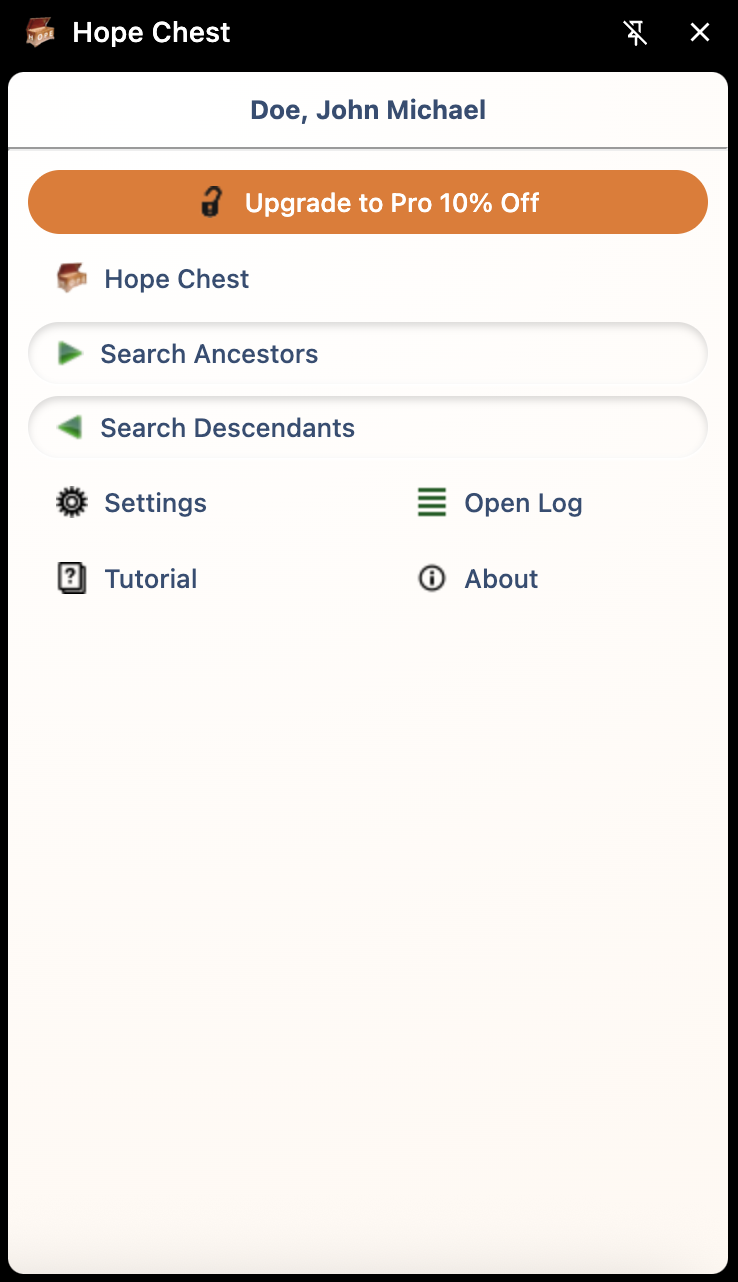
- Name banner (e.g. "Doe, John Michael") — the name of the FamilySearch user currently signed in.
- Upgrade to Pro / Plus banner — only shows on Basic (or Plus, prompting Pro). Takes you to the upgrade page; see Managing Your Plan & Settings.
- HopeChest — opens the hopechest window for viewing and managing specific aspects of labels and the names saved to them.
- Search Ancestors — searches upward through the current person's direct ancestral line for names ready for temple ordinances.
- Search Descendants — searches downward through the current person's descendants instead. Plus & up (see Searching Descendants).
- Settings — where you adjust search filters and manage save preferences.
- Open Log — shows a running log of what HopeChest has done during the current search.
- Tutorial — links to resources for learning and using HopeChest.
- About — version and account information, and a place to reach support.
- Navigate to the ancestor or family line you'd like to start from in your FamilySearch tree.
- Click the HopeChest icon, then choose a search — for example, Search Ancestors.
- HopeChest will work through the tree and collect anyone it finds who may be ready for temple ordinances.
- Let the search finish — for large family lines this can take a few minutes.
4. Reading Your Search Results
When a search finishes, HopeChest shows a list of ancestors, along with which ordinances are ready for each — separated by male and female ordinances.
- Names with all ordinances already completed won't need any action.
- Names flagged with a data problem or missing information are called out so you know to fix them on FamilySearch before reserving.
- Record hints are surfaced in the same list, so you can see suggested sources alongside ordinance status.
HopeChest relies on FamilySearch's own duplicate detection. If FamilySearch hasn't flagged two records as possible duplicates, HopeChest won't either — so it's worth periodically checking your tree in landscape mode for the "other spouses" arrow and merging duplicates before reserving ordinances.
5. Viewing & Managing Saved Names
Clicking HopeChest in the sidebar menu opens the full table view of everyone you've saved — this is where you review, clean up, and act on results after a search.
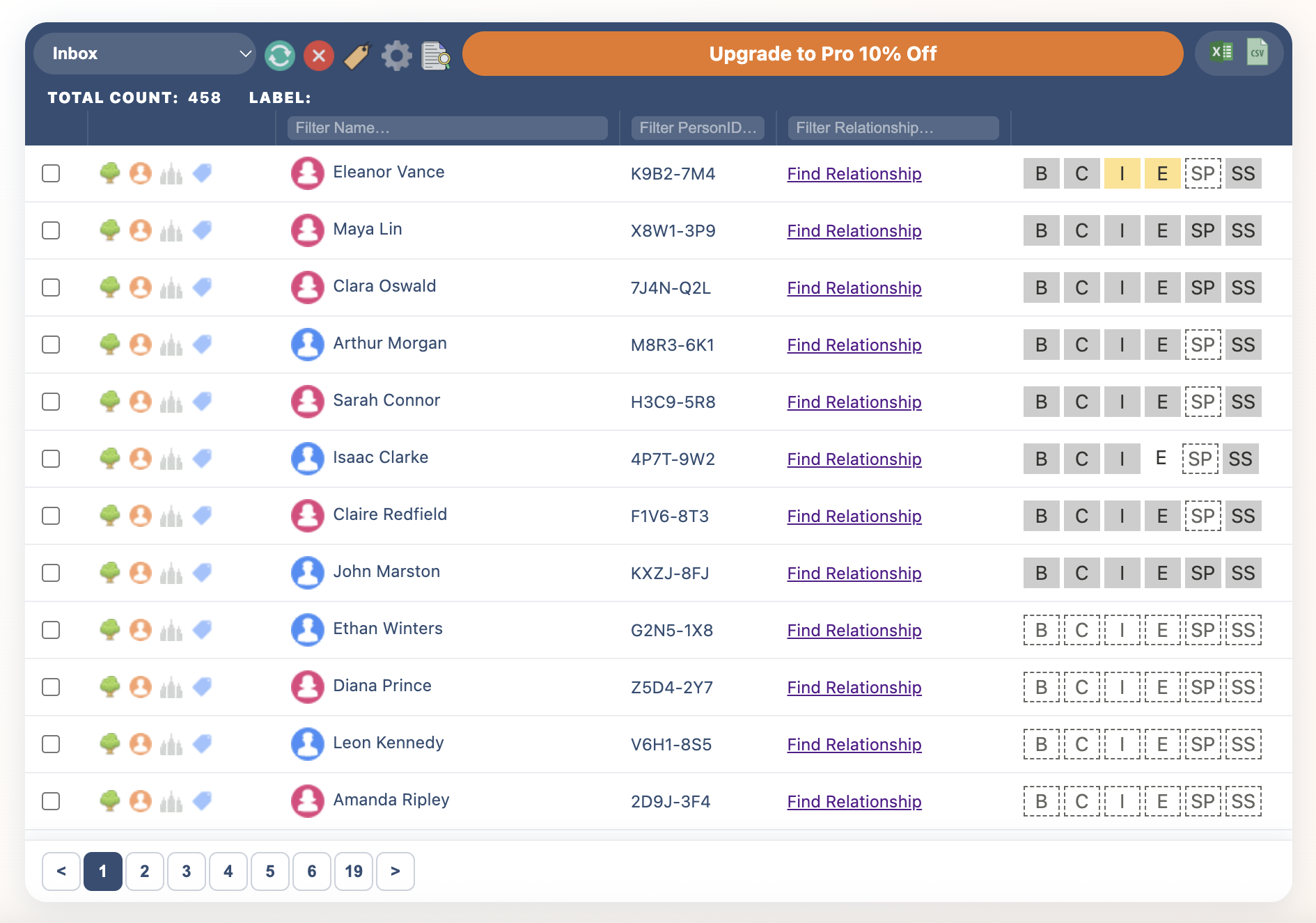
The toolbar at the top:
- Label dropdown (shows "Inbox" in the screenshot to the right) — switches which saved label's names you're viewing.
- Refresh — reloads the current label's names.
- Red X — deletes the selected (checked) rows.
- Tag icon — applies a label to the selected rows.
- Gear icon — opens Settings.
- Log icon — rechecks ordinance status for the selected rows against FamilySearch.
- Excel / CSV icons — export the current label's names. Pro & up (Basic and Plus see an upgrade link instead).
TOTAL COUNT is how many names are saved under the label currently selected.
Each row has four quick-action icons before the name:
- Tree icon — opens that person's pedigree tree on FamilySearch.
- Person icon — opens that person's profile page on FamilySearch.
- Temple icon — opens that person's ordinances page on FamilySearch.
- Label icon — shows which labels this person is saved under.
The six columns on the right — B, C, I, E, SP, SS — are ordinance types: Baptism, Confirmation, Initiatory, Endowment, Sealing to Parents, and Sealing to Spouse. Solid grey means that ordinance is completed; solid green means it's ready to reserve; solid yellow means it's in progress; an outlined badge means it isn't available yet or needs more information on FamilySearch before HopeChest can evaluate it.
6. Organizing with Labels
Labels act like folders for your search results, so you can keep different family lines or projects separate.
- Before you start a search, pick a label from the dropdown — Inbox, or any label you've created — and results from that search save directly into it.
- Use separate labels for separate branches of your tree, or for searches you're doing on behalf of extended family.
- Come back to a label any time to review its names or pick up where you left off.
Basic includes 1 label. Plus includes 5. Pro and Family have no limit — see the full plan comparison.
7. Working from Your Inbox
Inbox is HopeChest's default label — it's selected automatically unless you pick a different one before running a search. On HopeChest Basic, Inbox is the only label available, so every search you run saves there.
The number of names you've saved — across Inbox and any other labels combined — counts toward your account's total save limit: 500 names on Basic; no limit on Plus, Pro, or Family.
8. Searching Descendants & Specific Family Lines
Beyond searching straight up your ancestral line, HopeChest can search down through an ancestor's descendants — useful for finding cousins' lines that still need ordinances, or for collaborating with extended family on a shared ancestor.
Plus & up — Search Descendants is available on HopeChest Plus, Pro, and Family Edition.
9. Filtering by Date & Ordinance Status
To keep results focused, HopeChest can filter searches so you only see what's actually actionable:
- Date Configurable Search — restrict results to ancestors born before a certain year (for example, only those who meet the 110-year rule).
- Search by Ordinance Status — search specifically for names that are "Ready," "In Progress," or have a specific ordinance still needed.
- Filter by "Ordinances Needed" — narrow results down to just the ordinance types you're focused on.
Plus & up — these filters are available starting with HopeChest Plus. On Basic, HopeChest will surface all eligible names, including those born less than 110 years ago; upgrading to Plus lets you filter those out automatically.
10. Archiving & Exporting Results
Archive lets you move completed or reserved names out of your active labels and Inbox, so your working lists stay focused on what's still left to do. Plus & up
Export lets you download your results — handy for sharing a full list with family members or keeping an offline record. Pro & up
11. Printing for the Temple
From any results list, you can print a clean, ready-to-carry sheet of the names and ordinances you plan to bring to the temple — or share the same list with a family member who's attending in your place.
12. Managing Your Plan & Settings
To see your current plan, click the HopeChest icon, open About, and check the version line.
To upgrade, click the HopeChest icon and click the Upgrade button near the top of the menu. This takes you straight to the upgrade page. To compare plans see the full HopeChest plan comparison.
After upgrading, no extra setup is required — your new features unlock automatically once HopeChest is refreshed and payment is submitted.
The Family Edition automatically covers you, your spouse, and your children, grandchildren, great-grandchildren, and so on at the Pro level. Blended or step-family members can be added manually — email [email protected] for help.
13. Troubleshooting
If you have any other problems or questions about HopeChest, visit the full FAQ or email [email protected].